
In this article, you'll learn how to move forward and backward through your courses, utilize our chat feature, find downloadable PDF material, and more! Click the headings below to skip the material you're most interested in or watch this short video tutorial.
Access your Learning Library
Go to learn.drumambition.com and enter your email address and password. If you forgot your password, click the Forgot Password button. We'll send you an email with instructions for resetting your password and accessing your account.
Library Basics
After you log in, you will be taken to the Learning Library for Drum Ambition
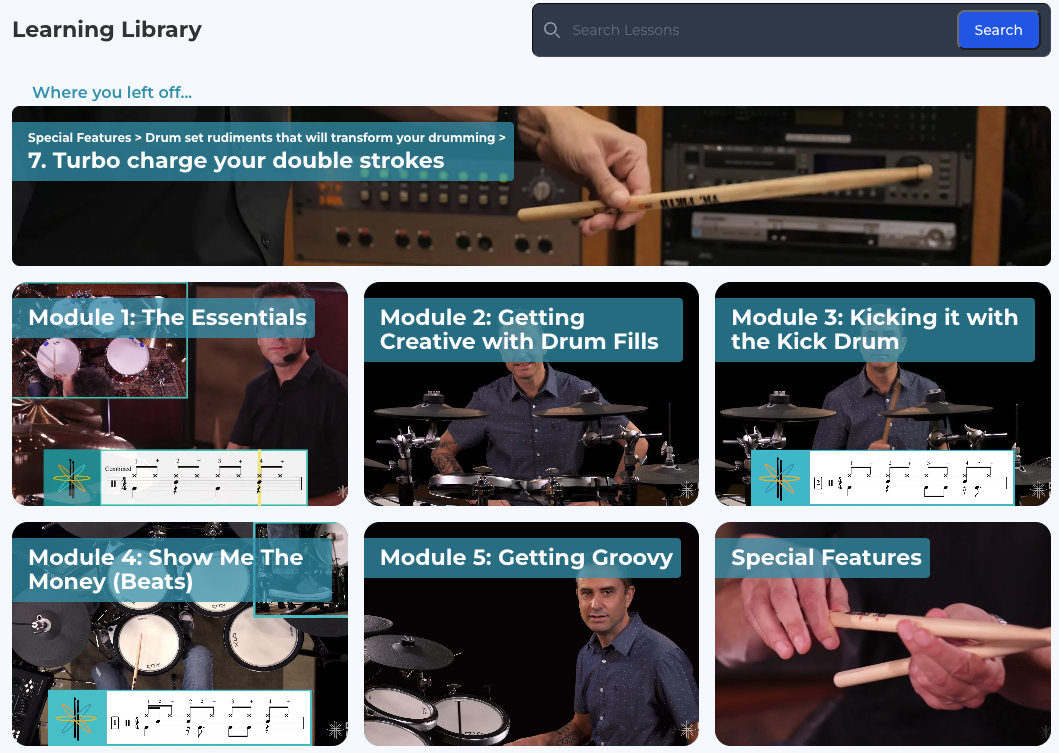
- Click the large tile at the top of the Library to jump to the video you last viewed.
- Click any of the Module tiles to enter a specific course.
Navigate to a Specific Class, Exercise & Lesson
- Click any of the Module tiles to enter a specific class.
- From inside the class, you can select to enter a specific Lesson or Exercise.
Within each Lesson or Exercise, you can navigate to other lessons within the same Class. Look to the right of the video player for the Lessons Menu. This menu may appear below the video player if you are viewing the lesson on a tablet or mobile device.
Interact within a Lesson or Exercise
1. Click the"Play/Pause" button to play or pause the video.
2. Click the video progress bar and drag your cursor to Fast Forward & Rewind the video.
3. Click the blue or gray bars to adjust the video's Volume level.
4. Click the gear icon to adjust the video's Resolution Settings.
5. In the Resources box, you can click to download any relevant resources for the lesson or exercise.
6. Click the four-arrow icon to expand or reduce the size of your video player
7. Click the "Next Up" button to advance to your next lesson or course.
Tips for navigating from every page of your Library
13. Click the "Library" button to return to the home page of your learning environment.
14. Click the "Settings" button to access and revise your account settings.
15. Click here to "Logout" of your account.
16. Click this text dynamic text to navigate to earlier classes, lessons or exercises.
17. Click the circular icon to select "Library," "Settings" or "Logout."
18. Click the Help icon to contact a Customer Support Representative.
Adjust Your Account Setting
19. Change the name associated with your account here.
20. Update or change your email address here.
21. Change your password using these 2 boxes. Click the eye icon if you'd like to see your password as you type.
22. Be sure to click the "Save Changes" button if you make any changes on this page.
Comments
0 comments
Article is closed for comments.